|
 |
 |
 |
|
|
Home | More Articles | Join as a Member! | Post Your Job - Free! | All Translation Agencies | |
|
|||||||
|
|
|
|
Getting Started with Trados FL in Two Minutes
 Introduction Introduction
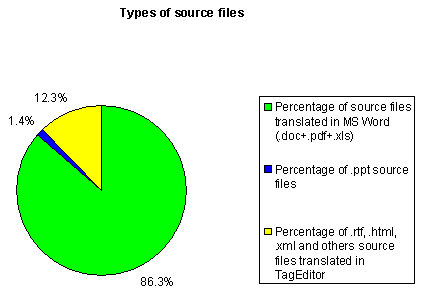
It is not a secret that many translators believe Trados is too complex and unfriendly. This popular misconception is supported by the bulkiness of Trados’s manuals: FL5.5 was supplied with five manuals totaling 936 pages, and FL6.5 has six manuals totaling 1252 pages - enough to scare off the most computer-savvy translator! However, these manuals can't be short and simple since they are comprehensive and cover all Trados functions and settings, which are almost unlimited. Objective of the ArticleMy five years of experience in using Trados FL 5.5 and 6.5 demonstrates that knowledge of several basic functions of Trados FL is enough to use this software for translation of 80% of your jobs, helping you to: - double your translation productivity; - find and win more clients/jobs; - make work less tiring; - double your earnings; - improve quality by increasing consistency and avoiding omissions and eye mistakes. Hopefully this article will help you get rid of all prejudices against Trados and begin using basic Trados FL functions in two minutes. To do so, you only need to focus on vitally important Trados features and skip all the others. Determining the Most Important Trados FeaturesLet's determine which Trados features are vitally important for the translation process and which features can be ignored at the first stage. The analysis given below is based on nine months of my freelance work (from January 1, 2005 to September 15, 2005). During this period, I completed 220 translation jobs (some of them contained up to 200 source files, with a total word count of more than 500,000 source words) for 40 customers (translation agencies and end customers) from 14 countries. My language direction was English to Russian. According to my records, the distribution of types of source files was as follows:
For several reasons, I converted all .pdf and .xls source files into .doc files and translated them in MS Word. The following chart reflects my usage of MS Word and Tag Editor:
The following table shows how often I used various Trados modules for translation (%):
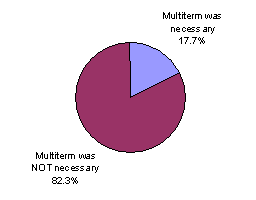
The following chart shows how often I used Multiterm (project glossary):
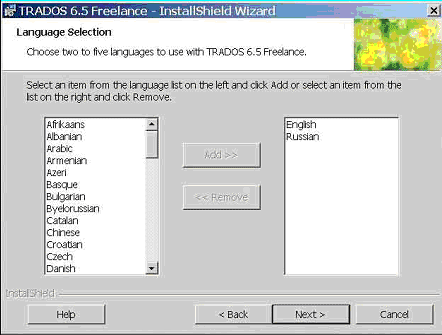
This data shows that you only need Trados Workbench and MS Word to enjoy the benefits of Trados FL when translating 80% of your jobs. This means you don’t need to learn to use Multiterm, TagEditor and other Trados modules at the first stage. Installation of Trados FL 6.51. Download Trados 6.5 Freelance from http://www.translationzone.com/download.asp (110 MB). 2. Install Trados 6.5 Freelance: a. Double-click Setup.exe. b. When asked, accept License Agreement. c. When asked, do not install MS .NET Framework Package. d. When asked, accept the End-User License Agreement. e. When asked to select a license type, select "None of the above" (demo version). f. When asked, add source and target languages. Screenshot 1
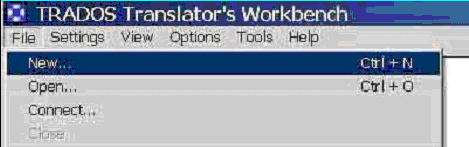
g. When asked to chose setup type, select Complete. The whole installation process will be completed within one minute. Getting Started With Trados FLYou are now all set to translate your first source file with Trados 6.5 FL. 1. Select Start > Programs > Trados 6.5 Freelance > Translator's Workbench (TW). 2. Create a new Translation Memory file (TM): a. From the TW menu select File > New. Screenshot 2
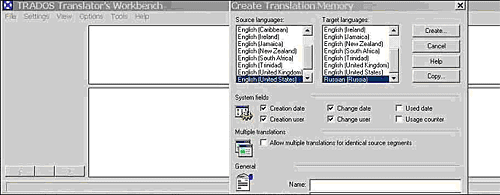
b. When asked, select source and target languages. Screenshot 3
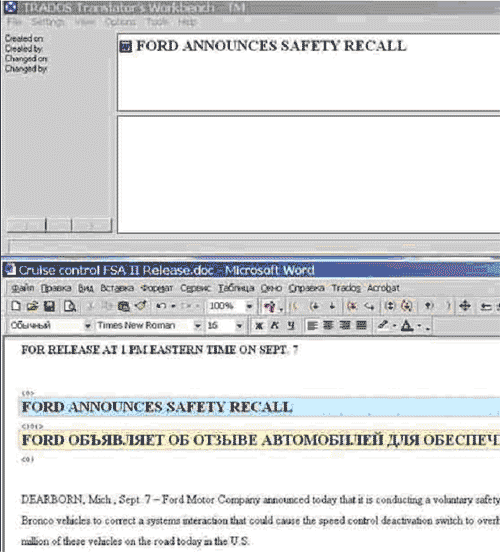
c. Name the new TM and save it in a folder. d. Open your source .doc file and place it below the TW window (see screenshot 4). e. Place mouse pointer on the first sentence and press Alt+Home. This preparation process typically takes less than one minute. Type in your translation in the lower text box with the yellow background (see the screenshot below). Screenshot 4
Note: if you already have a TM (e.g., received from your client), you do not need to create a new one - just open the existing TM (see screenshot 2). From the TW menu select File > New > Select a TM file > OK. To go to the next sentence, press Alt+Numerical+ (on the right-hand side of the keyboard). Repeat the above process until the end of the source file and press Alt+End. Congratulations! You just completed translation of your first source file with Trados 6.5 FL. Save the bilingual file and close it. To delete source text from the bilingual file (this process is referred to as the "clean-up"): 1. From the TW menu select Tools > Clean-up. 2. Add the file to be cleaned-up. 3. Click the Clean-up button. Click the Close button. Your file now contains only your translation. You can study other useful Trados functions (buttons) by selecting Trados from the MS Word menu bar. From now on, you will never translate the same sentence, phrase or term more than once! ConclusionHopefully this article will help you appreciate the obvious benefits of TM software: segmentation of source text, preservation of original formatting and re-use of your old translations. Having enjoyed these benefits, undoubtedly you will want to expand your abilities and learn the other Trados modules - first of all Multiterm and Tageditor. My other articles on the use and benefits of Translation Memory software are available at my website - www.erussiantranslations.com.
E-mail this article to your colleague! Need more translation jobs? Click here! Translation agencies are welcome to register here - Free! Freelance translators are welcome to register here - Free! |
|
|
|
|
|
|
| |||
Legal Disclaimer Site Map |