|
 |
 |
 |
|
|
Home | More Articles | Join as a Member! | Post Your Job - Free! | All Translation Agencies | |
|
|||||||
|
|
|
|
SEO guide by Google
Version 1.1, published 13 November 2008 Welcome to Google's Search Engine Optimization Starter Guide. This document first began as an effort to help teams within Google, but we thought it'd be just as useful to webmasters that are new to the topic of search engine optimization and wish to improve their sites' interaction with both users and search engines. Although this guide won't tell you any secrets that'll automatically rank your site first for queries in Google (sorry!), following the best practices outlined below will make it easier for search engines to both crawl and index your content. Search engine optimization is often about making small modifications to parts of your website. When viewed individually, these changes might seem like incremental improvements, but when combined with other optimizations, they could have a noticeable impact on your site's user experience and performance in organic search results. You're likely already familiar with many of the topics in this guide, because they're essential ingredients for any webpage, but you may not be making the most out of them.
Search engine optimization affects only organic search results, not paid or "sponsored" results, such as Google AdWords Even though this guide's title contains the words "search engine", we'd like to say that you should base your optimization decisions first and foremost on what's best for the visitors of your site. They're the main consumers of your content and are using search engines to find your work. Focusing too hard on specific tweaks to gain ranking in the organic results of search engines may not deliver the desired results. Search engine optimization is about putting your site's best foot forward when it comes to visibility in search engines. An example may help our explanations, so we've created a fictitious website to follow throughout the guide. For each topic, we've fleshed out enough information about the site to illustrate the point being covered. Here's some background information about the site we'll use:
Your site may be smaller or larger than this and offer vastly different content, but the optimization topics we discussed below should apply to sites of all sizes and types. We hope our guide gives you some fresh ideas on how to improve your website, and we'd love to hear your questions, feedback, and success stories in the Google Webmaster Help Group. Create unique, accurate page titlesA title tag tells both users and search engines what the topic of a particular page is. The <title> tag should be placed within the <head> tag of the HTML document. Ideally, you should create a unique title for each page on your site.
The title of the homepage for our baseball card site, which lists the business name and three main focus areas If your document appears in a search results page, the contents of the title tag will usually appear in the first line of the results (If you're unfamiliar with the different parts of a Google search result, you might want to check out the anatomy of a search result video by Google engineer Matt Cutts, and this helpful diagram of a Google search results page.) Words in the title are bolded if they appear in the user's search query. This can help users recognize if the page is likely to be relevant to their search. The title for your homepage can list the name of your website/business and could include other bits of important information like the physical location of the business or maybe a few of its main focuses or offerings.
A user performs the query [baseball cards]
Our homepage shows up as a result, with the title listed on the first line (notice that the query terms the user searched for appear in bold)
If the user clicks the result and visits the page, the page's title will appear at the top of the browser Titles for deeper pages on your site should accurately describe the focus of that particular page and also might include your site or business name.
A user performs the query [rarest baseball cards]
A relevant, deeper page (its title is unique to the content of the page) on our site appears as a result Good practices for page title tags
Make use of the "description" meta tagA page's description meta tag gives Google and other search engines a summary of what the page is about. Whereas a page's title may be a few words or a phrase, a page's description meta tag might be a sentence or two or a short paragraph. Google Webmaster Tools provides a handy content analysis section that'll tell you about any description meta tags that are either too short, long, or duplicated too many times (the same information is also shown for <title> tags). Like the <title> tag, the description meta tag is placed within the <head> tag of your HTML document.
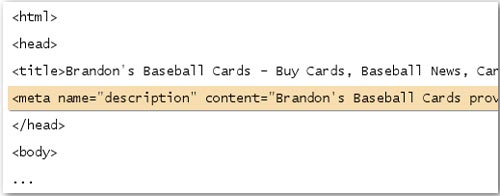
The beginning of the description meta tag for our homepage, which gives a brief overview of the site's offerings Description meta tags are important because Google might use them as snippets for your pages. Note that we say "might" because Google may choose to use a relevant section of your page's visible text if it does a good job of matching up with a user's query. Alternatively, Google might use your site's description in the Open Directory Project if your site is listed there (learn how to prevent search engines from displaying ODP data). Adding description meta tags to each of your pages is always a good practice in case Google cannot find a good selection of text to use in the snippet. The Webmaster Central Blog has an informative post on improving snippets with better description meta tags. Snippets appear under a page's title and above a page's URL in a search result.
A user performs the query [baseball cards]
Our homepage appears as a result, with part of its description meta tag used as the snippet Words in the snippet are bolded when they appear in the user's query. This gives the user clues about whether the content on the page matches with what he or she is looking for. Below is another example, this time showing a snippet from a description meta tag on a deeper page (which ideally has its own unique description meta tag) containing an article.
A user performs the query [rarest baseball cards]
A relevant, deeper page (its title is unique to the content of the page) on our site appears as a result Good practices for description meta tags
Improve the structure of your URLsCreating descriptive categories and filenames for the documents on your website can not only help you keep your site better organized, but it could also lead to better crawling of your documents by search engines. Also, it can create easier, "friendlier" URLs for those that want to link to your content. Visitors may be intimidated by extremely long and cryptic URLs that contain few recognizable words.
A URL to a page on our baseball card site that a user might have a hard time with URLs like these can be confusing and unfriendly. Users would have a hard time reciting the URL from memory or creating a link to it. Also, users may believe that a portion of the URL is unnecessary, especially if the URL shows many unrecognizable parameters. They might leave off a part, breaking the link. Some users might link to your page using the URL of that page as the anchor text. If your URL contains relevant words, this provides users and search engines with more information about the page than an ID or oddly named parameter would.
The highlighted words above could inform a user or search engine what the target page is about before following the link Lastly, remember that the URL to a document is displayed as part of a search result in Google, below the document's title and snippet. Like the title and snippet, words in the URL on the search result appear in bold if they appear in the user's query.
A user performs the query [baseball cards]
Our homepage appears as a result, with part of its description meta tag used as the snippet Below is another example showing a URL on our domain for a page containing an article about the rarest baseball cards. The words in the URL might appeal to a search user more than an ID number like "www.brandonsbaseballcards.com/article/102125/" would.
A user performs the query [rarest baseball cards]
A relevant, deeper page (its title is unique to the content of the page) on our site appears as a result Google is good at crawling all types of URL structures, even if they're quite complex, but spending the time to make your URLs as simple as possible for both users and search engines can help. Some webmasters try to achieve this by rewriting their dynamic URLs to static ones; while Google is fine with this, we'd like to note that this is an advanced procedure and if done incorrectly, could cause crawling issues with your site. To learn even more about good URL structure, we recommend this Webmaster Help Center page on creating Google-friendly URLs. Good practices for URL structure
Make your site easier to navigateThe navigation of a website is important in helping visitors quickly find the content they want. It can also help search engines understand what content the webmaster thinks is important. Although Google's search results are provided at a page level, Google also likes to have a sense of what role a page plays in the bigger picture of the site. All sites have a home or "root" page, which is usually the most frequented page on the site and the starting place of navigation for many visitors. Unless your site has only a handful of pages, you should think about how visitors will go from a general page (your root page) to a page containing more specific content. Do you have enough pages around a specific topic area that it would make sense to create a page describing these related pages (e.g. root page -> related topic listing -> specific topic)? Do you have hundreds of different products that need to be classified under multiple category and subcategory pages?
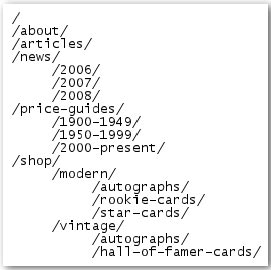
The directory structure for our small website on baseball cards A sitemap (lower-case) is a simple page on your site that displays the structure of your website, and usually consists of a hierarchical listing of the pages on your site. Visitors may visit this page if they are having problems finding pages on your site. While search engines will also visit this page, getting good crawl coverage of the pages on your site, it's mainly aimed at human visitors. An XML Sitemap (upper-case) file, which you can submit through Google's Webmaster Tools, makes it easier for Google to discover the pages on your site. Using a Sitemap file is also one way (though not guaranteed) to tell Google which version of a URL you'd prefer as the canonical one (e.g. http://brandonsbaseballcards.com/ or http://www.brandonsbaseballcards.com/; more on what's a preferred domain). Google helped create the open source Sitemap Generator script to help you create a Sitemap file for your site. To learn more about Sitemaps, the Webmaster Help Center provides a useful guide to Sitemap files. Good practices for site navigation
Breadcrumb links appearing on a deeper article page on our site
Offer quality content and servicesCreating compelling and useful content will likely influence your website more than any of the other factors discussed here. Users know good content when they see it and will likely want to direct other users to it. This could be through blog posts, social media services, email, forums, or other means. Organic or word-of-mouth buzz is what helps build your site's reputation with both users and Google, and it rarely comes without quality content.
A blogger finds a piece of your content, likes it, and then references it in a blog post While the content you create could be on any topic imaginable, here are some recommended best practices: Good practices for content
Write better anchor textAnchor text is the clickable text that users will see as a result of a link, and is placed within the anchor tag <a href="..."></a>.
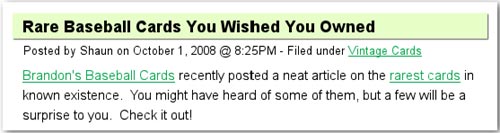
This anchor text accurately describes the content on one of our article pages This text tells users and Google something about the page you're linking to. Links on your page may be internal—pointing to other pages on your site—or external—leading to content on other sites. In either of these cases, the better your anchor text is, the easier it is for users to navigate and for Google to understand what the page you're linking to is about. Good practices for anchor text
Use heading tags appropriatelyHeading tags (not to be confused with the <head> HTML tag or HTTP headers) are used to present structure on the page to users. There are six sizes of heading tags, beginning with <h1>, the most important, and ending with <h6>, the least important.
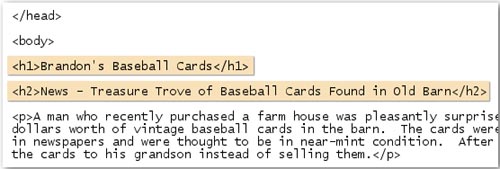
On a page containing a news story, we might put the name of our site into an <h1> tag and the topic of the story into an <h2> tag Since heading tags typically make text contained in them larger than normal text on the page, this is a visual cue to users that this text is important and could help them understand something about the type of content underneath the heading text. Multiple heading sizes used in order create a hierarchical structure for your content, making it easier for users to navigate through your document. Good practices for heading tags
Optimize your use of imagesImages may seem like a straightforward component of your site, but you can optimize your use of them. All images can have a distinct filename and "alt" attribute, both of which you should take advantage of. The "alt" attribute allows you to specify alternative text for the image if it cannot be displayed for some reason.
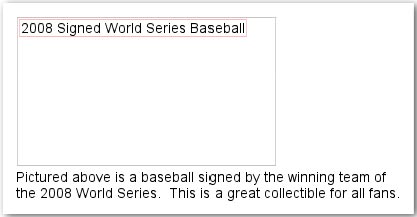
Our alt text here is a brief but accurate description of the image Why use this attribute? If a user is viewing your site on a browser that doesn't support images, or is using alternative technologies, such as a screen reader, the contents of the alt attribute provide information about the picture.
Our image wasn't displayed to the user for some reason, but at least the alt text was Another reason is that if you're using an image as a link, the alt text for that image will be treated similarly to the anchor text of a text link. However, we don't recommend using too many images for links in your site's navigation when text links could serve the same purpose. Lastly, optimizing your image filenames and alt text makes it easier for image search projects like Google Image Search to better understand your images. Good practices for images
Make effective use of robots.txtA "robots.txt" file tells search engines whether they can access and therefore crawl parts of your site. This file, which must be named "robots.txt", is placed in the root directory of your site.
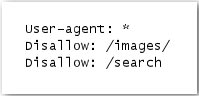
The address of our robots.txt file
All compliant search engine bots (denoted by the wildcard * symbol) shouldn't access and crawl the content under /images/ or any URL whose path begins with /search You may not want certain pages of your site crawled because they might not be useful to users if found in a search engine's search results. If you do want to prevent search engines from crawling your pages, Google Webmaster Tools has a friendly robots.txt generator to help you create this file. Note that if your site uses subdomains and you wish to have certain pages not crawled on a particular subdomain, you'll have to create a separate robots.txt file for that subdomain. For more information on robots.txt, we suggest this Webmaster Help Center guide on using robots.txt files. There are a handful of other ways to prevent content appearing in search results, such as adding "NOINDEX" to your robots meta tag, using .htaccess to password protect directories, and using Google Webmaster Tools to remove content that has already been crawled. Google engineer Matt Cutts walks through the caveats of each URL blocking method in a helpful video. Good practices for robots.txt
Be aware of rel="nofollow" for linksSetting the value of the "rel" attribute of a link to "nofollow" will tell Google that certain links on your site shouldn't be followed or pass your page's reputation to the pages linked to. Nofollowing a link is adding rel="nofollow" inside of the link's anchor tag.
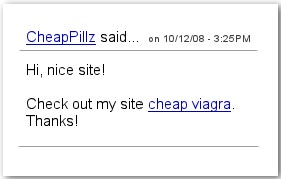
If you link to a site that you don't trust and don't want to pass your site's reputation to, use nofollow When would this be useful? If your site has a blog with public commenting turned on, links within those comments could pass your reputation to pages that you may not be comfortable vouching for. Blog comment areas on pages are highly susceptible to comment spam. Nofollowing these useradded links ensures that you're not giving your page's hard-earned reputation to a spammy site. Many blogging software packages automatically nofollow user comments, but those that don't can most likely be manually edited to do this. This advice also goes for other areas of your site that may involve user-generated content, such as guestbooks, forums, shout-boards, referrer listings, etc. If you're willing to vouch for links added by third parties (e.g. if a commenter is trusted on your site), then there's no need to use nofollow on links; however, linking to sites that Google considers spammy can affect the reputation of your own site. The Webmaster Help Center has more tips on avoiding comment spam, like using CAPTCHAs and turning on comment moderation.
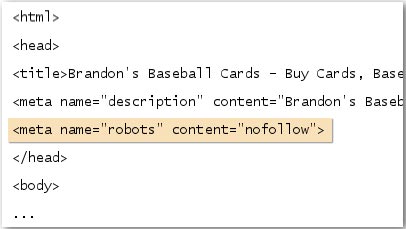
A comment spammer leaves a message on one of our news posts, hoping to get some of our site's reputation Another use of nofollow is when you're writing content and wish to reference a website, but don't want to pass your reputation on to it. For example, imagine that you're writing a blog post on the topic of comment spamming and you want to call out a site that recently comment spammed your blog. You want to warn others of the site, so you include the link to it in your content; however, you certainly don't want to give the site some of your reputation from your link. This would be a good time to use nofollow. Lastly, if you're interested in nofollowing all of the links on a page, you can use "nofollow" in your robots meta tag, which is placed inside the <head> tag of that page's HTML. The Webmaster Central Blog provides a helpful post on using the robots meta tag. This method is written as <meta name="robots" content="nofollow">.
This nofollows all of the links on a page Promote your website in the right waysWhile most of the links to your site will be gained gradually, as people discover your content through search or other ways and link to it, Google understands that you'd like to let others know about the hard work you've put into your content. Effectively promoting your new content will lead to faster discovery by those who are interested in the same subject. As with most points covered in this document, taking these recommendations to an extreme could actually harm the reputation of your site. Good practices for promoting your website
Make use of free webmaster toolsMajor search engines, including Google, provide free tools for webmasters. Google's Webmaster Tools help webmasters better control how Google interacts with their websites and get useful information from Google about their site. Using Webmaster Tools won't help your site get preferential treatment; however, it can help you identify issues that, if addressed, can help your site perform better in search results. With the service, webmasters can:
Yahoo! (Yahoo! Site Explorer) and Microsoft (Live Search Webmaster Tools) also offer free tools for webmasters. Take advantage of web analytics servicesIf you've improved the crawling and indexing of your site using Google Webmasters Tools or other services, you're probably curious about the traffic coming to your site. Web analytics programs like Google Analytics are a valuable source of insight for this. You can use these to:
For advanced users, the information an analytics package provides, combined with data from your server log files, can provide even more comprehensive information about how visitors are interacting with your documents (such as additional keywords that searchers might use to find your site). Lastly, Google offers another tool called Google Website Optimizer that allows you to run experiments to find what on-page changes will produce the best conversion rates with visitors. This, in combination with Google Analytics and Google Webmaster Tools (see our video on using the "Google Trifecta"), is a powerful way to begin improving your site. Helpful resources for webmastersGoogle Webmaster Help Group - Have questions or feedback on our guide? Let us know Except as otherwise noted, the content of this document is licensed under the Creative Commons Attribution 3.0 License. Published - January 2009 Creative Commons Attribution 3.0 License
http://creativecommons.org/licenses/by/3.0/
E-mail this article to your colleague! Need more translation jobs? Click here! Translation agencies are welcome to register here - Free! Freelance translators are welcome to register here - Free! |
|
|
|
|
|
|
| |||
Legal Disclaimer Site Map |


![A user performs the query [baseball cards]](../images_articles/SEO_guide/search_engine_optimization_03.jpg)


![A user performs the query [rarest baseball cards]](../images_articles/SEO_guide/search_engine_optimization_06.jpg)