|
 |
 |
 |
|
|
Home | More Articles | Join as a Member! | Post Your Job - Free! | All Translation Agencies | |
|
|||||||
|
|
|
|
Creating the Ideal Word Processing Environment in Translation Environment Tools
By Jost Zetzsche,
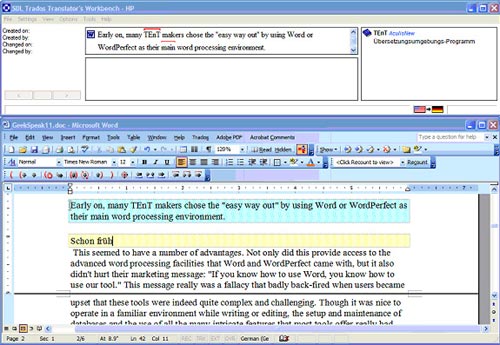
Trados' Word editing environment The first assumption—that Word does offer advanced word processing features—was correct, though. So why is there a move away from Word, even by the tools that are automatically associated with Word such as Trados or Multitrans? (In fact, to my knowledge Wordfast is the only tool left on the market that offers Word as its only word processing environment.) There are a number of reasons for this departure. One obvious one is the reliance on a third-party tool that makes it difficult to do your own independent planning for your tool. Another is the need to require users to purchase Word if they want to use your tool. And lastly, it is difficult to use Word with all the many other non-Word-compliant formats that are to be translated (DTP, tagged, other Office, database, software development, and many other formats). So, what features would ideally be part of a TEnT that does not use Word as its translation editor? Input Clearly, all the different language keyboards and Input Method Editors (IME) need to work. While this is typically the case, another kind of input via speech recognition does not always work as easily. Even though speech recognition programs such as Dragon NaturallySpeaking or Vista's internal tool work with most Windows applications, including TEnTs, they are often less than optimal. For instance, in some tools the beginning of a sentence is automatically recognized and capitalized, while in others it is not; in some tools, internal codes are harder to control with your voice than in others. The development of a good translation editor needs to include testing with the most common speech recognition programs. Spell-Check We all know how important this is and we all know how lacking most TEnT tools are in this regard! There are typically four strategies that tool developers have employed so far:
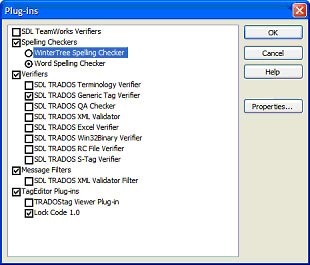
Choosing between the Wintertree and the Office spell-checker in Trados TagEditor
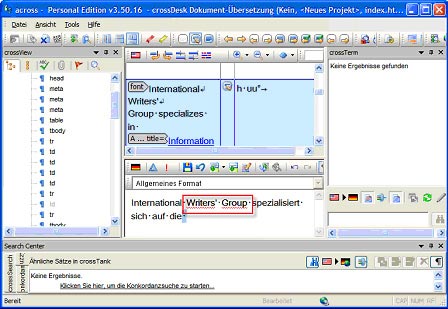
Knowing how important good spell-checking is for translators and editors, it is clearly important to find out how your (prospective) tool handles this and how good it is for your language (and at the same time for developers to use the broadest and best solution available). Also, some languages have stand-alone third-party spell-checkers that are often considered superior to any other product. While this is no easy task, it would be wonderful if there were ways to use these in the respective TEnT tools. And lastly, only browser-based tools (see above) and across offer the squiggly-underline on-the-fly spell-check that Word or OpenOffice offer. It's true that some of us don't like this feature, but others think it is absolutely essential so it would be nice to have the option of using it.
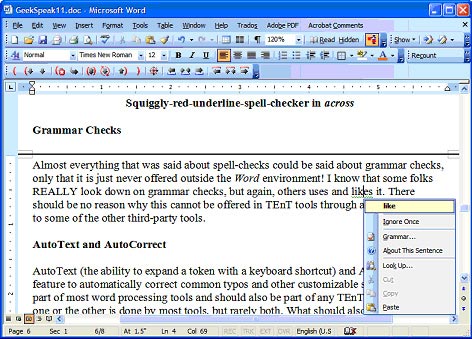
Squiggly-red-underline spell-checker in across Grammar Checks Almost everything that was said about spell-checks could be said about grammar checks, only that it is just never offered outside the Word environment! I know that some folks REALLY look down on grammar checks, but again, others use and like it. There should be no reason why this cannot be offered in TEnT tools through a link to Word or to some of the other third-party tools.
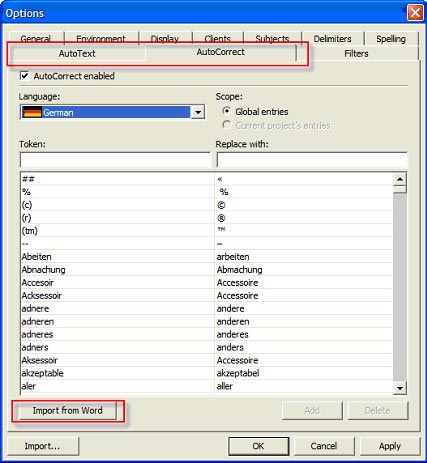
Grammar checker in Word AutoText and AutoCorrect AutoText (the ability to expand a token with a keyboard shortcut) and AutoCorrect (the feature to automatically correct common typos and other customizable short forms) are part of most word processing tools and should also be part of any TEnT tool. Typically one or the other is done by most tools, but rarely both. It should also be possible to import language-specific lists from other tools.
Déjà Vu
is one of the only tools that offers AutoText and AutoCorrect
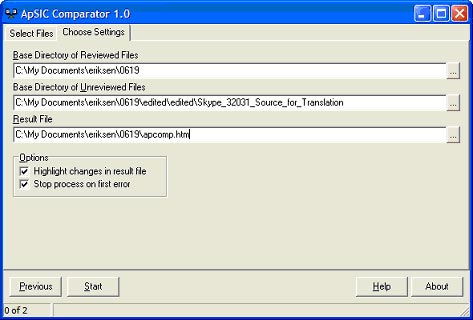
Track Changes This is huge and it's really a no-brainer that it should be part of any kind of TEnT tool. Yet at this point, not a single one provides it outside of the Word environment. There are workarounds (some tools track whether a different user has touched a cell, while others have third-party tools available for a comparison), but an elegant integrated solution needs to be part of any word processing environment for any tool. The very nature of the job makes this is a necessity, because the translation process typically involves editing and proofreading passes during which the documents are exchanged back and forth between translators, editors, and proofreaders. Though it uses a different process than Word, Lingotek also stores information about the different stages and allows you to compare them in any combination at a later point (even through its exported XLIFF format).
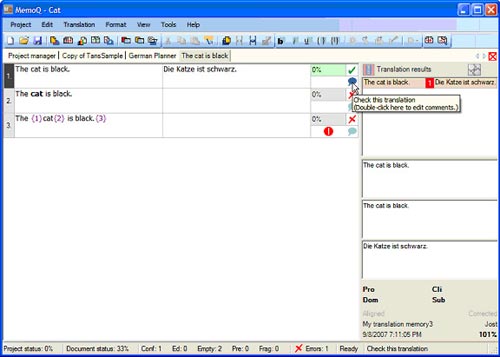
Comparing files in the third-party application ApSIC Comparator Comments Comments have fortunately become a rather common feature within TEnT tools, and the few that do not offer this feature should definitely do this. It's just very handy to add some comments as you're working when you are in doubt as a translator or editor (or you want to express your appreciation for a colleague's good work . . .).
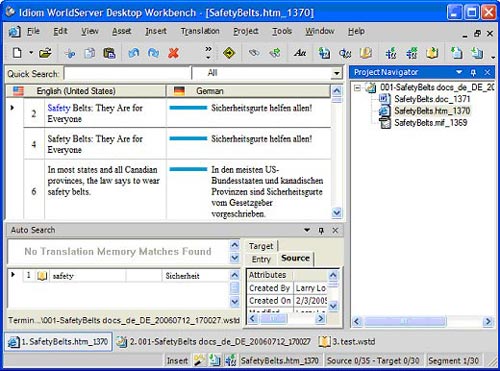
Comments in MemoQ Inline Codes Inline codes are the markers that are used to "remember" formatting or other kinds of tags within sentences in a TEnT environment. Every tool needs to deal with those in some way or other. What's important is that placing these codes not interrupt the workflow of translating. Anything that can be achieved only through the mouse is not user-friendly and should be banned. It is important to have (customizable!) keyboard shortcuts for this task. Smart Quotes This seems like a small thing, but most of us know it is very frustrating to have to enter the smart/curly quotes of our particular language with the help of some kind of fancy work-around. The tool should do it for you. WYSIWYG What-you-see-is-what-you-get—the ability to see the translation in its context and layout—is as old a topic as TEnTs, and different users simply have different preferences. What has become common practice for a good number of tools is not to offer a complete WYSIWYG environment while you translate (because this could be distracting and is in some cases just not possible, such as when dealing with text that is embedded within certain code). Instead, the user is given the chance to switch on the fly to a WYSIWYG environment (as much as that is possible) to verify the placement and context of text strings.
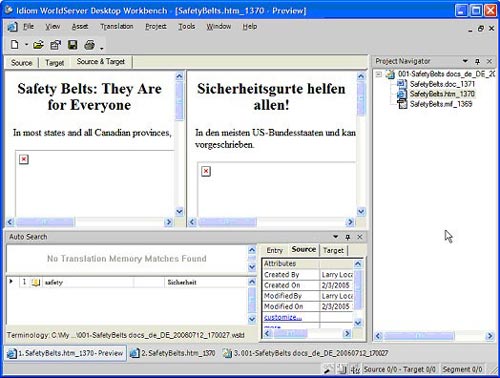
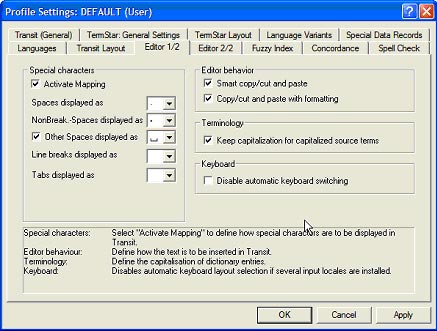
Translation and Preview view in Idiom WorldServer Desktop Workbench Non-Printing Characters In an editing environment it's helpful to see these to avoid or make sure of double-spaces (within a sentence or after a period), to see the difference between a breaking and a non-breaking space (one of the few ANSI combinations everyone should know: Alt+0160), or to verify whether a tab is used instead of spaces. Transit has a very fancy and user-definable implementation of this and so does SDLX. Trados TagEditor shows normal spaces vs. non-breaking spaces and so does across by default. Most other TEnTs don't do that, though.
Setting non-printing characters in Star Transit I can think of a number of other things that could be listed here, but if the items above were to become a minimal best-practice checklist for tool developers, we all would be well served.
|
|
|
|
|
|
|
| |||
Legal Disclaimer Site Map |

 One of the areas at the heart of how successful
a Translation Environment Tool (TEnT) is for the translator,
editor, and proofreader is the quality of its word processing
environment.
One of the areas at the heart of how successful
a Translation Environment Tool (TEnT) is for the translator,
editor, and proofreader is the quality of its word processing
environment.