|
 |
 |
 |
|
|
Home | More Articles | Join as a Member! | Post Your Job - Free! | All Translation Agencies | |
|
|||||||
|
|
|
|
Work Breakdown Structure (WBS) of Localization Projects
Why Should I care? It is quite ironic that a tool designed to encourage "management by deliverables" is rarely described in terms of what it delivers. Try "What is a Work Breakdown Structure?" in your favorite search engine, and the thousands of pages competing for your attention describe a WBS as a "results-oriented tree defining the products of a project," or some other insipid language in the same vein. What this "tree" is supposed to achieve for you, the project manager, is mostly left to your imagination. Such language may lead you to wrongly dismiss the WBS as another moneymaking scheme devised by clever consultants who view all problems as trees and triangles and who invariably offer solutions with 3, 5, or 7 steps. To demonstrate that the concept deserves your attention, it has to be described in the context of a project manager's daily preoccupations. Your career is guaranteed if you can look your manager, colleagues, and clients straight in the eyes and provide immutable answers to three basic questions:
Indeed, your sanity and personal life is preserved if you can look in the mirror and convince the reflection that you really believe these answers. Project management is about being in control, a daunting task when you consider the complexity of a localization project and its combination of technologies, languages, and intervening parties. You may feel like a superhero some days, but when you have a brain that can hardly handle seven items simultaneously (five to nine according to the literature) and have a project involving more steps and deliverables than the combined fingers and toes of your entire staff, you will have no other choice beyond stocking up on headache and heartburn drugs—or using tools that help you manage complexity. The Work Breakdown Structure, or WBS, is a solution of the latter kind. Divide to conquer Given its acute awareness of the limitations of the human brain, it shouldn't come as a surprise that the military establishment originally developed the notion of Work Breakdown Structures to facilitate the management of defense projects. The underlying concept wasn't particularly new: to master a complex undertaking, divide it into smaller, more manageable parts. The original WBS was resolutely focused on deliverables rather than on tasks. The project was broken down into a number of products or services to deliver, rather than actions to perform. WBS practitioners soon discovered, however, that resisting the "to do" thinking isn't so easy. This led to a schism between product-oriented and task- oriented WBS proponents. The ensuing religious war that still seems to be raging can be classified under the "fish or cut bait" category of pointless academic controversies. It appears to be fueled exclusively by people who obviously have nothing to deliver anytime soon. We, the pragmatists, can safely ignore the bickering and should not lose our hard-earned sleep over "translations" being things to deliver or things to do. Much more important to remember is that the sole objective of a WBS is to break down a project into manageable portions. The WBS doesn't embrace any notion of time, cost, resource, or dependency. Instead, the WBS simply ensures you have identified everything that needs to be done or delivered before you try to determine days, dollars, and people. Developing the WBS precedes—and should be used as a basis for—project scheduling, resource allocation, and cost evaluation.
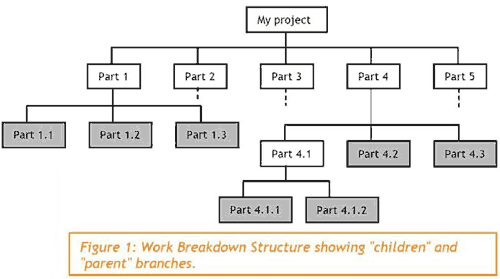
Outline of a WBS Although it can be represented by a simple indented list or a table, the WBS is most commonly pictured as a hierarchical tree, branching down into increasing levels of detail. The only requisite is that all the "children" of a particular branch must represent a complete but more granular view of their immediate "parent." For example, in Figure 1 on the next page, "My project" will be completed when its five parts are completed. "Part 1" is completed when its three parts are completed, etc. It's entirely up to you to decide the number of parts into which you break down your project, and how far you continue to subdivide. Remember, however, the whole point of the WBS is simply to help you chop up a large and complex project into a collection of smaller, manageable parts (or "sub-projects") without getting totally overwhelmed and dropping tasks or deliverables in the process. The trunk and branches of the tree are just there to maintain the integrity of the structure and keep your brain from switching into overload mode. The results of the breakdown, the parts you are effectively interested in, are represented by the leaves of the tree (the shaded boxes in Figure 1). An obvious question poses itself at this point: when should a sub-project be considered manageable? The exact answer is different for each of us. It depends on your management style, the nature of the project, and the operating procedures of your company. The general answer is straightforward: a sub-project is manageable when the associated amount of work remains within certain limits of elapsed time, cost, and allocated resources. For example, you could decide that a sub-project is manageable if the time needed to accomplish the work is less than one week, if the total cost is under $5,000, and if it can be executed by a single individual. Establishing your own "manageability" criteria before starting to split up the project is essential, or you'll end up chopping till you get sawdust. I pointed out earlier that project management is all about being in control. The corollary is "while spending as little energy as possible." For example, after dividing a project into 12 sub- projects, if you feel very confident you can accurately define and monitor schedules, budgets, and resource allocations, why on earth would you want to keep track of 83 subprojects? As another example, it is likely that "gathering English source files" represents a manageable sub-project that doesn't need to be broken down into "gathering English source files from Joe's team," and then "gathering English source files from Beth's team," etc. (If that's what you feel compelled to do, chances are high that you're suffering from a common PM disease called "micro-management.") Developing the WBS Once you've established your manageability criteria, you're ready to develop the WBS. Although some software applications exist to help you design and document a WBS, the most effective tools are quite simple: a large, flat surface and a pile of sticky notes. The common practice is to work from the top down. Assuming you're in charge of localizing a product called "SuperSoft v6.2," you start with a sticky note representing the trunk of the WBS tree.
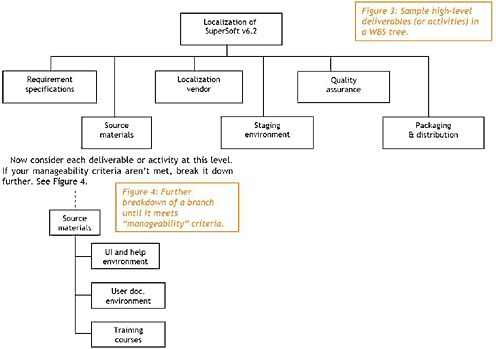
Next, you identify a number of high-level deliverables (or activities, depending on the WBS parish you belong to) that need to be produced in this project. Whether you do this alone or as a team, you'll quickly realize that there are many possibilities. Don't waste your time arguing about the "right" breakdown; just pick one that seems reasonable. See Figure 3 for an example. Continue this breakdown process until all the leaves of your tree match your predefined criteria. As the tree grows, you'll probably conclude that certain subdivisions don't seem logical or that a number of deliverables scattered over different branches would make more sense if grouped together under a single branch, etc. You'll find yourself compelled to rearrange the tree and try breakdown variations: the sticky notes will prove very handy. If you work as a team, brace yourself for a shouting match. Once the tree is stabilized, document it in the form of a graphic, an indented list, or any other format that suits you. And here's a good tip: remember to add a short description to each label, if you don't want to find yourself a few days later trying to remember what "database trimmings" meant. Circulate the documented WBS among all the parties that will be involved directly or indirectly in the localization project. The more people who review the WBS, the higher your chances it will be bulletproof.
The validated version of your WBS will be a rock-solid basis for your project scheduling, budget estimate, and resource allocation. Conclusion Although conceptually very simple, the Work Breakdown Structure could well become your best friend, particularly if you manage large or complex localization projects. While your first WBS may take some time and practice to materialize, you're likely to identify one or several specific templates that are applicable to your projects as you continue building them. Before you know it, you'll be developing a WBS while listening to that boring conference call and simultaneously checking your e-mail.
Published - April 2009
ClientSide News Magazine - www.clientsidenews.com
E-mail this article to your colleague! Need more translation jobs? Click here! Translation agencies are welcome to register here - Free! Freelance translators are welcome to register here - Free! |
|
|
|
|
|
|
| |||
Legal Disclaimer Site Map |